Is Your GA4 Setup Actually Working? How to Tell in 10 Minutes
You installed GA4. The tag is firing. The real-time report shows visitors. Everything looks like it is working.
It probably is not.
Google Analytics holds roughly 81% of the web analytics market and is running on millions of websites worldwide. Most of those installations were set up once and never touched again. The tag went in, the real-time report showed numbers, and everyone moved on.
Here is the thing nobody tells you during setup: GA4’s default configuration tracks almost nothing that matters to your business. It records pageviews, scroll depth, and outbound link clicks. It does not record the actions that tell you whether your marketing is working. Form submissions. Phone calls. Purchases. Quote requests. Whatever the action is that means revenue came in.
I look at GA4 setups every week. The pattern is almost always the same. The tag is installed. Data is flowing. The configuration is doing about 20% of what it should be doing. The other 80% was never finished. And because GA4 never throws an error when something is missing, most businesses have no idea their data is incomplete.
Here is how to check yours. Six things you can look at right now, without installing anything, that will tell you whether your GA4 is useful or just collecting noise.
1. Check what events you are actually tracking
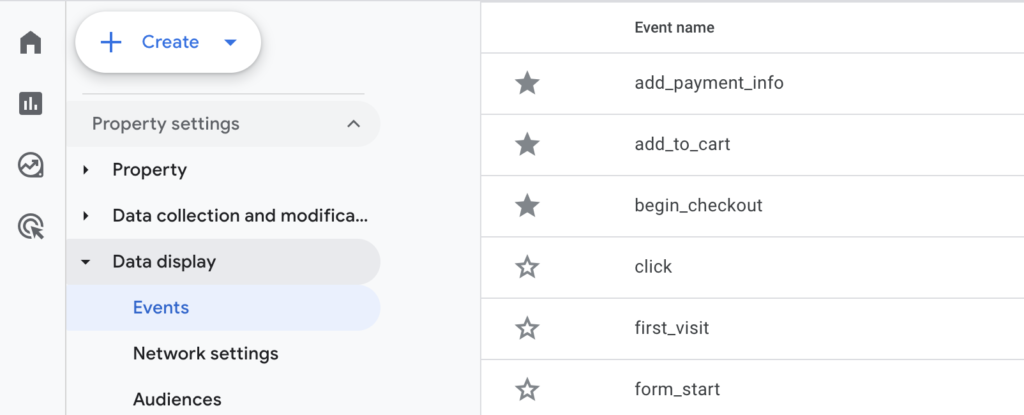
Go to your GA4 property. Click Admin in the left sidebar, then under Data Display, click Events.
You will see a list of every event GA4 is recording. If you only see default events like page_view, session_start, first_visit, scroll, and click, and nothing that describes a business action, your setup is incomplete.
What you want to see depends entirely on your business model. A lead generation site should have events like form_submit, phone_click, whatsapp_click, or request_quote. An ecommerce site should have add_to_cart, begin_checkout, and purchase. A SaaS product might track sign_up, trial_start, or upgrade.
If none of your revenue-generating actions appear in this list, GA4 is tracking activity but not outcomes. Traffic reports will look fine. Conversion data will be empty or misleading.
This is the single most common issue I see across audits. Not a misconfiguration in the traditional sense. Just a setup that was never completed past the initial installation. The tag is there. The foundation is not.
2. Check if your key events are actually marked
This one catches more people than you would expect.
You can have a perfectly configured form_submit event firing on every form completion, and it still will not count as a conversion unless you explicitly tell GA4 it matters.
In the same Events screen, look for a column labelled “Mark as key event.” Google renamed this from “Conversions” in 2024 (you can read about the change in Google’s key events documentation), so if you see the old label, it is the same thing. Toggle it on for every event that represents a meaningful business action.
Here is why this matters beyond your GA4 reports. If you are running Google Ads and importing conversions from GA4, only events marked as key events get sent to Google Ads for bidding optimisation. If your events are tracked but not marked, Smart Bidding has no signal to work with. It is optimising toward nothing.
I have seen this exact scenario more than once. A client spending five figures a month on Google Ads. Tracking set up correctly in GTM. Events firing perfectly in GA4. But because nobody toggled the key event switch, none of that conversion data was reaching Google Ads. The algorithm ran blind for months. Campaigns were being evaluated on impressions and clicks because the platform had no conversion signal to optimise against.
This takes 30 seconds to check and fix. It is one of the highest-impact changes you can make to your entire marketing measurement.
3. Check your enhanced measurement settings
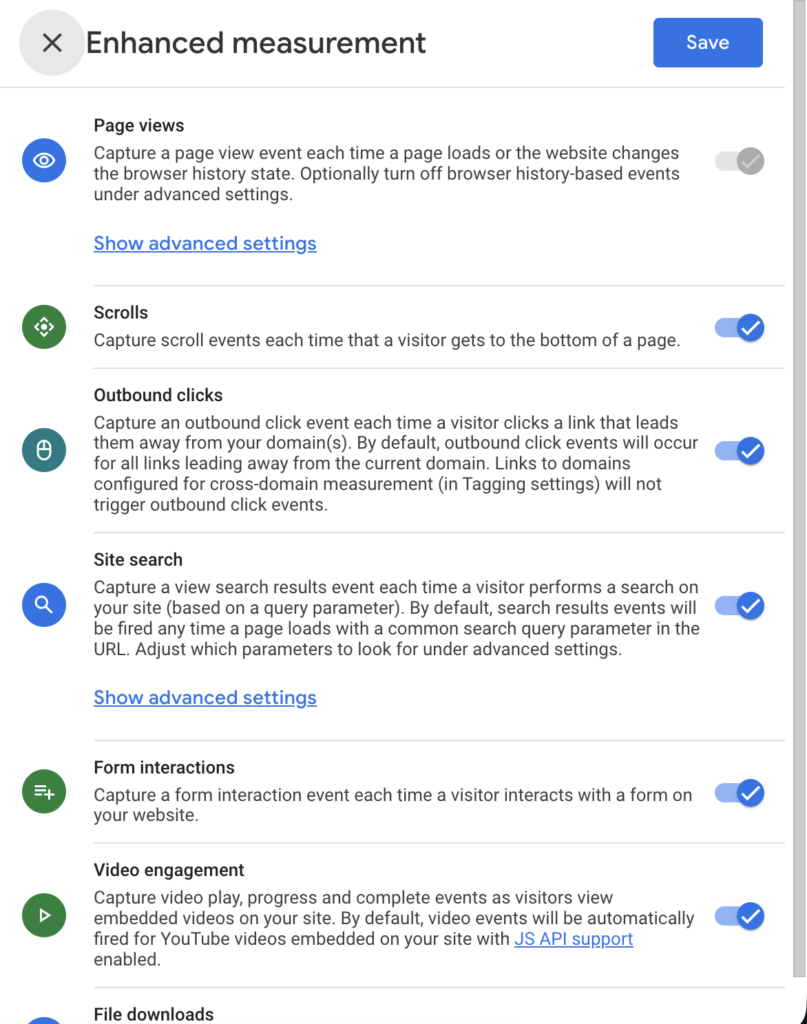
Go to Admin, then Data Streams, then click on your web stream. You will see an “Enhanced measurement” section with a list of toggles.
Enhanced measurement is GA4’s attempt to automatically track common interactions without manual setup. On paper, it sounds like a shortcut. In practice, it creates a false sense of coverage that leads to bad decisions.
Here is what each toggle actually does.
Page views. Useful. Keep this on.
Scrolls. Fires when someone scrolls to 90% of the page. Sounds informative. In practice, this triggers on nearly every page and tells you almost nothing actionable. A 90% scroll on a 400-word page is not engagement. It is just reaching the footer.
Outbound clicks. Tracks clicks to external domains. Occasionally useful for partnerships or referral analysis, but generates a lot of noise from footer links, social icons, and policy page links that nobody cares about.
Site search. Tracks internal search queries. Useful if you actually have a search bar. If you do not, GA4 sometimes triggers this on URL parameters that look like search queries, creating phantom search data in your reports.
Form interactions. This is the misleading one. It tracks form_start (someone clicked into a field) and form_submit. But it fires on every form element on the page. Search bars, login fields, newsletter popups, cookie consent banners, spam submissions. It cannot distinguish between a high-value contact enquiry and someone dismissing a cookie preference toggle.
The danger is that most people see “form interactions” is toggled on and assume their forms are properly tracked. They check GA4, see form_submit events appearing, and move on. But that data includes every form-like element on the site. It does not tell you which specific form was submitted, what was in it, or whether the submission was actually successful.
For anything that matters to your business, you need custom event tracking through Google Tag Manager. Enhanced measurement is a starting point. Treating it as a complete solution is how you end up with reports that technically have data but practically tell you nothing useful.
4. Check your data retention setting
This takes 10 seconds and is overlooked in almost every setup I review.
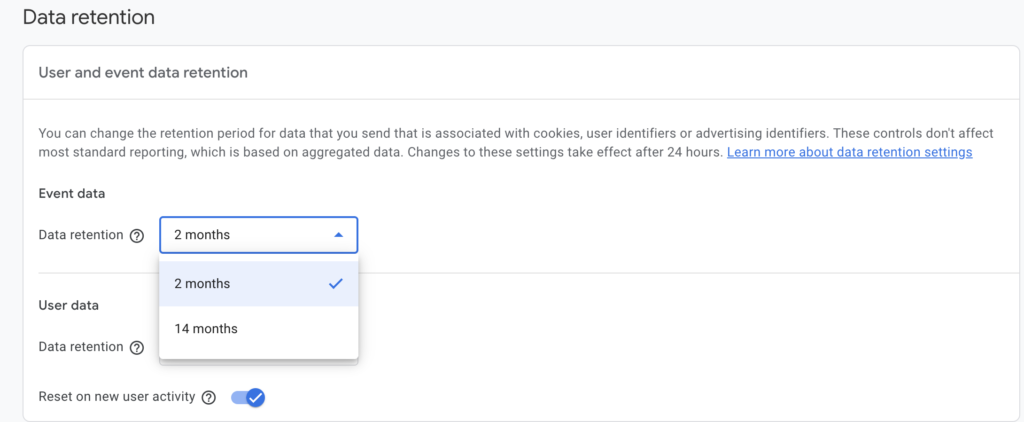
Go to Admin, then Data Settings, then Data Retention.
GA4 defaults to 2-month event data retention. This means your Exploration reports (the custom, flexible reports where you do actual analysis) only have access to the last 2 months of event-level data. Standard reports use aggregated data, so they are not affected. But the moment you need to build a custom funnel, compare user segments, or look at behaviour paths over time, you are limited to 60 days.
Change it to 14 months. That is the only other option Google offers. Google’s own documentation on data retention recommends 14 months for any property where custom analysis is needed, which is effectively every property.
This setting is not retroactive. Every day you leave it at 2 months is a day of granular data you will not be able to recover later.
I regularly speak to marketing teams who built detailed Exploration reports, tried to compare performance this quarter against the same period last year, and discovered there was nothing to compare against. The data was not deleted. GA4 simply never retained it past 60 days. Nobody noticed until the analysis was needed and the data was already gone.
5. Check whether internal traffic is filtered
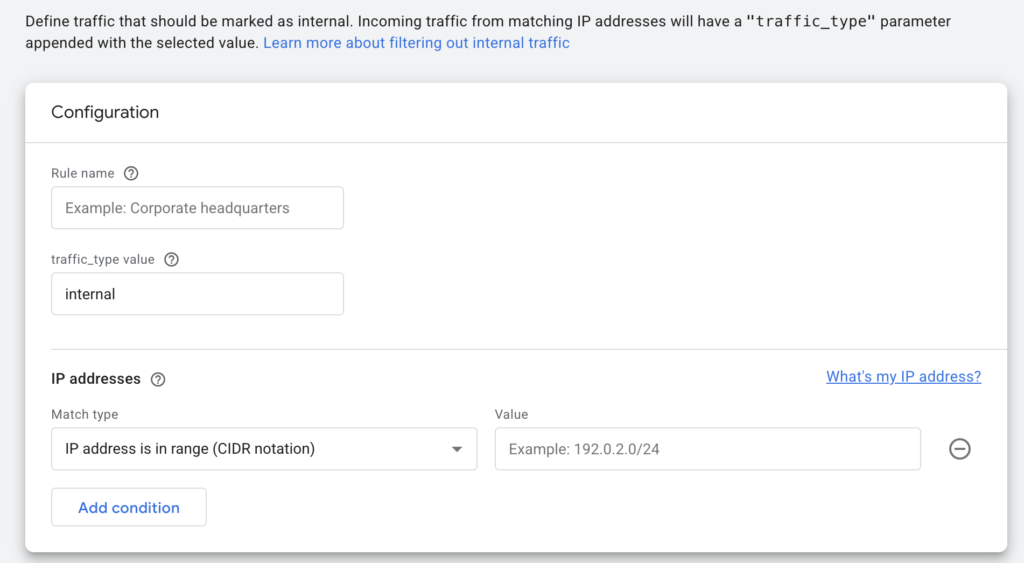
Go to Admin, then Data Settings, then Data Filters.
If you see “Internal Traffic” listed but the status says “Testing” rather than “Active,” your own team’s visits are mixed into your real traffic data. Pageviews are inflated. Conversion rates are skewed. Engagement metrics do not reflect your actual customers.
GA4 does not filter internal traffic by default. You have to configure it in two places. First, define what counts as internal traffic (Admin > Data Streams > Configure tag settings > Define internal traffic). Second, activate the data filter.
The activation step is the one people miss. They define the IPs and assume they are done. But the filter sits in “Testing” mode indefinitely until you manually switch it to Active. Testing mode means GA4 labels the traffic as internal but still includes it in your reports. The data looks clean. It is not.
For small teams this might feel minor. But if five or six people visit the site daily, test forms, click around, and browse pages, that activity adds up. Your bounce rate, session duration, and conversion rate all shift. And because there is no visual indicator that internal traffic is included, you would never know unless you checked.
6. Check your attribution settings
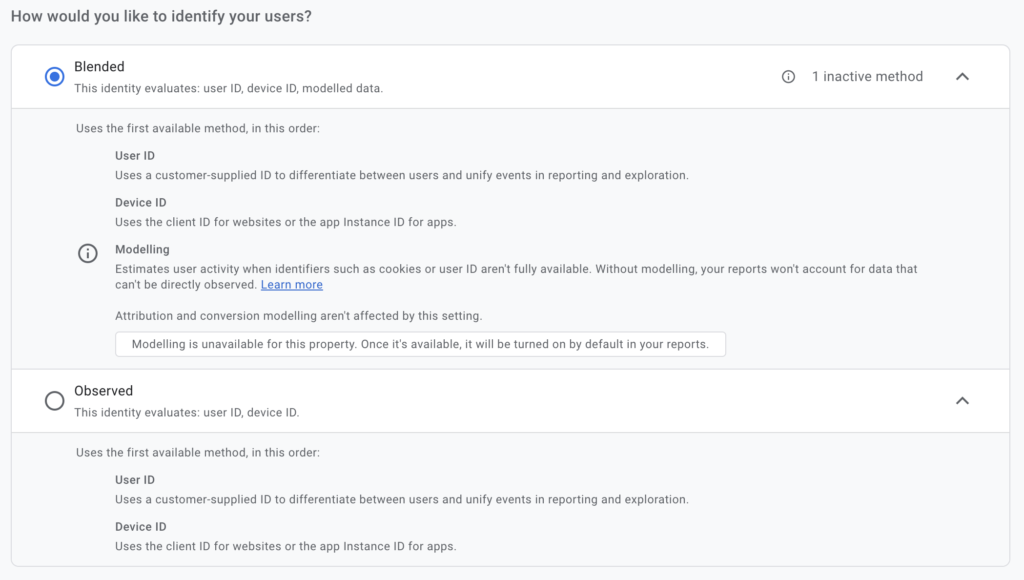
Two things to look at.
Attribution model. GA4 defaults to data-driven attribution, which uses machine learning to distribute conversion credit across touchpoints based on your actual data. For businesses with reasonable traffic volume, this is generally the right choice. But if your conversion volume is very low (a few hundred conversions a month or less), the model may not have enough signal to work effectively. The credit distribution can look inconsistent or arbitrary at low volumes. There is no single right answer here, but you should know which model is active and whether it makes sense for your data volume.
Lookback window. This controls how far back GA4 looks when attributing a conversion to a traffic source. The default is 30 days for acquisition conversions and 90 days for other types.
Here is where this gets practical. Say a potential customer clicks your LinkedIn ad on day 1. They visit your site, read a few pages, and leave. On day 45, they come back through a branded Google search and submit a contact form. Because the lookback window is 30 days, GA4 does not connect that conversion back to the original LinkedIn click. The credit goes entirely to branded search.
The result: your LinkedIn campaign looks like it is underperforming. Branded search looks like it is driving all your leads. Neither picture is accurate. And if you reallocate budget based on those numbers, you cut the channel that actually started the journey and double down on the channel that simply closed it.
If your typical sales cycle runs longer than 30 days (common in B2B, real estate, education, and any high-consideration purchase), check whether the lookback window matches your reality.
What your results tell you
If all six checks are solid, your GA4 setup is in better shape than most. There may still be deeper issues underneath (tag firing order, cross-domain tracking, server-side infrastructure) but the foundations are right.
If three or more are off, your data has meaningful gaps. The reports you review every week are not reflecting what is actually happening on your site. Decisions built on that data (where to spend, what to cut, which channels to scale) are based on an incomplete picture.
The frustrating part of GA4 is that it never tells you something is wrong. It quietly collects whatever it is configured to collect. If you never set up custom events, it does not flag it. If your attribution window is too short, there is no warning. The dashboards look precise. The numbers look clean. They just happen to be incomplete.
What sits underneath
Everything above covers what you can verify from inside your GA4 property. But there is a layer underneath that the admin panel cannot show you.
Tag reliability. Events appear in GA4, but you cannot tell from reports alone whether events are firing in the right order, whether they are duplicated across pages, or whether they silently fail on specific devices or browsers.
Ad blocker impact. According to Backlinko’s analysis of GWI data, roughly 30% of internet users worldwide use ad-blocking tools. Many of these tools do not just block ads. They block analytics scripts too, including GA4. Those visitors came to your site. Some of them converted. GA4 never recorded any of it. You cannot see what is missing because blocked visits simply do not exist in your data.
Cookie restrictions. Safari’s Intelligent Tracking Prevention caps certain first-party cookies to 7 days. If a Safari visitor returns after a week, GA4 treats them as a brand new user. Your returning visitor numbers may be understated and your new user numbers overstated. Safari is not a niche browser. It represents a significant share of traffic for most businesses, particularly those with mobile-heavy audiences.
Ad platform data gaps. GA4 might show 100 conversions this month, but how many of those actually reached Google Ads, Meta, or TikTok for bidding optimisation? If there is a gap between what GA4 records and what your ad platforms receive, their algorithms are optimising on incomplete signal. You are paying for machine learning that does not have the full picture.
These are questions that require looking at the site from the outside: at the tags, cookies, and network requests, not at the reports inside GA4.
If you want a second pair of eyes on this, we do a free external check. Send us your URL and we walk you through what we find. No account access needed. No obligation.
Start with what you can fix today
GA4 is a good tool. The problem is almost never the platform itself. It is that the platform was set up once, left on defaults, and never revisited.
If you went through these checks and found issues, you are not behind. You are ahead of the majority who never check at all. The fact that you are reading this means you care about getting the data right. That matters more than most people realise.
The data retention setting takes 10 seconds to change. Marking key events takes 30 seconds. Activating the internal traffic filter takes a minute. These are small changes that immediately improve what your reports tell you.
The deeper work (custom event tracking, server-side infrastructure, cross-domain configuration, consent mode implementation) is where real measurement quality begins. But it starts with knowing where you stand.
We put together a checklist covering 10 specific GA4 configuration items, including what to look for and why each one matters. You can get it below.
The GA4 Setup Checklist.
All 10 checks in a single reference. Covers everything in this article plus cookie behaviour, server-side readiness, consent mode, and cross-domain configuration.
No spam. Unsubscribe anytime. Privacy policy.