
You can see visitors in GA4, but when someone asks how many enquiries the website produced, you're less sure where to look. There are events in the report. Which one represents an enquiry the sales team actually received?
I look at GA4 setups every week, and this is a familiar gap. Data is coming in, but nobody has checked whether the events match what the business needs to measure.
These six checks will help you find the gaps worth investigating. Allow about ten minutes for a first pass through the settings. Testing important journeys and fixing what you find will take longer.
1. Find the event behind your main business outcome
Choose the action you rely on most: a completed enquiry, an order or a signup. In Admin → Data display → Events, look for the event meant to represent it. Then open the Events report for a period when you know that action happened.
The name will depend on the implementation. Google's recommended events give you a starting point:
- A lead-generation site might use generate_lead for a submitted enquiry
- A shop might use add_to_cart, begin_checkout and purchase
- A product might use sign_up, with other events for its trial or upgrade flow
The site or an integration needs to implement these events. GTM is one option; the Google tag or an appropriate platform integration can also do it.
An event's name is only a starting point. A phone_click tells you someone clicked a phone link. To establish that a call connected or became a lead, you need evidence from further along that journey. The same care applies to a form submission, as we'll see in the enhanced measurement check.
If the expected event is missing, check the date range and when it was implemented. Many GA4 reports take 24–48 hours to process new data. Realtime and DebugView can help you investigate incoming events sooner.
By the end of this check, you should be able to write down the business action and the event that measures it. If nobody can connect the two, you've found your first question for whoever manages tracking.
2. See which outcomes count as key events
In Admin → Data display → Events, inspect the key-event status of the outcomes you identified. The current interface uses a star to mark an existing event where applicable. Some events, including purchase, are already marked by default.
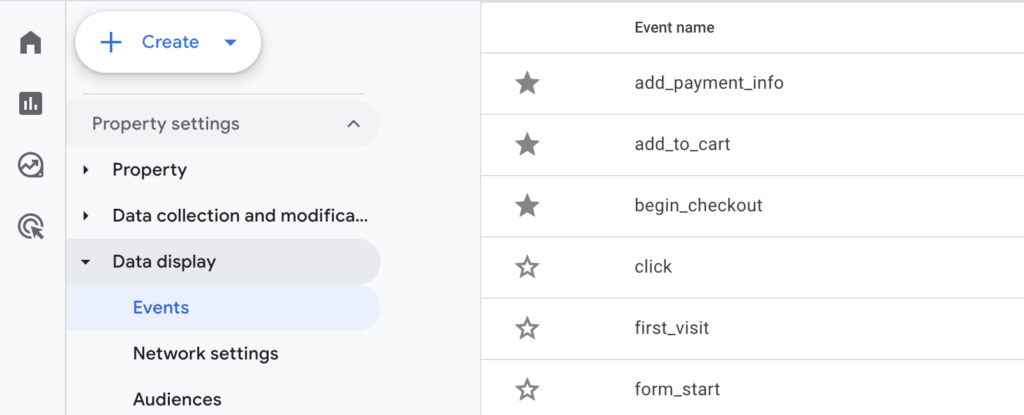
Marking an event changes reporting from that point onward. It doesn't relabel past activity, so record when you make a change.
Be selective about what earns that status. If your goal is sales enquiries, a general form-submission event may mix them with newsletter signups. Establish what the event includes before using its total to judge performance.
Google Ads needs a separate check. Confirm that the corresponding conversion action exists and is recording, then look at the goals used by the campaign. For a standard goal, the intended action needs to be primary and the campaign must use that goal. Secondary actions are generally for observation; custom goals have an exception.
The key-event star in GA4 is therefore one part of the setup. The conversion action and campaign goal tell you whether Google Ads is using the outcome as intended.
3. Read the enhanced measurement settings closely
Open Admin → Data collection and modification → Data streams. Select your web stream and inspect Enhanced measurement.
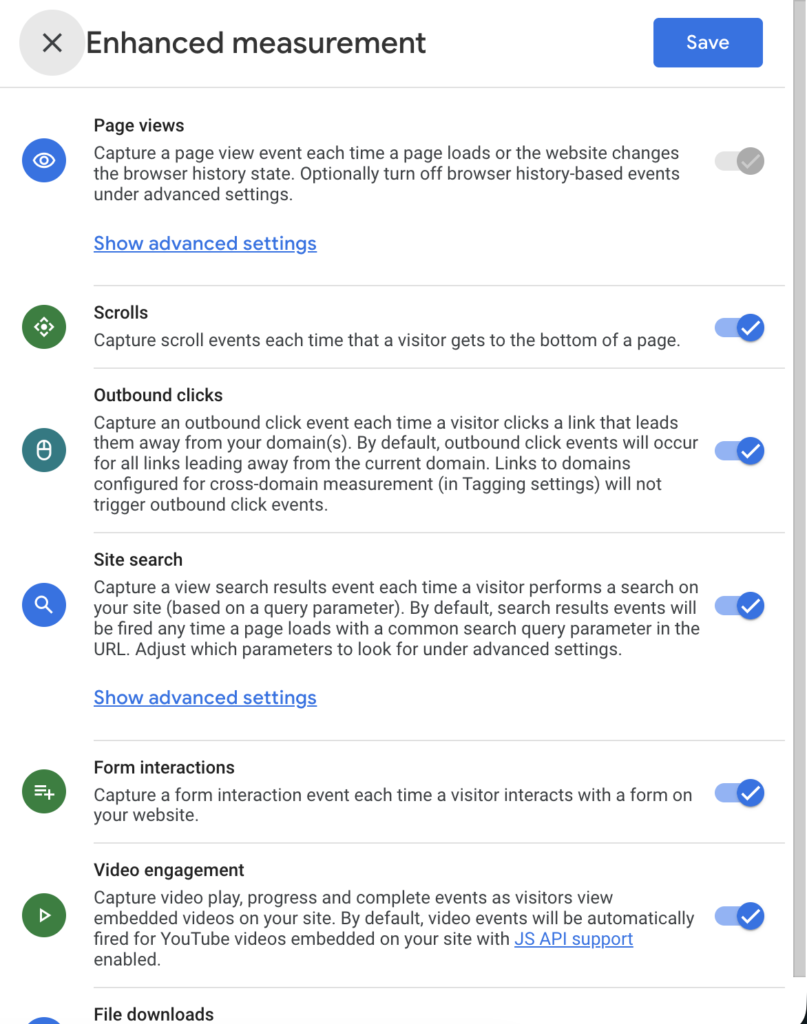
These settings cover useful interactions, but each has a particular meaning:
- Page views can overlap with those sent by another tag or your application, so look for duplication
- Scroll records the first time 90% of a page's vertical depth becomes visible. That measures position on the page, rather than whether someone read it
- Outbound clicks cover links away from the current domain, except configured cross-domain destinations
- Site search relies on recognised search-query parameters in the URL
- Form interactions include form_start and form_submit, with parameters such as form_id and form_name to help distinguish forms
- Video engagement and file downloads have their own supported conditions
For a lead-generation site, spend the most attention on forms. Enhanced measurement can detect a submission, but the sales team needs a valid enquiry. Those two things need to be tested together.
For your next test, submit the form successfully, try a validation error, and revisit any thank-you page. Follow the lead event through each case. It should represent successful completion and fire only as intended, without counting an error or a repeat page visit as another lead.
Use non-personal form identifiers when you need to distinguish forms. Keep names, email addresses and message contents out of ordinary Analytics event parameters.
4. Look at how much detailed history you'll have
Open Admin → Data collection and modification → Data retention. The default is two months, which may be too short for the Explorations you expect to run.
For most standard properties, event-data retention offers two or fourteen months. Analytics 360 has longer options, and large-property restrictions apply. This setting affects Explorations and funnel reports; standard aggregated reports are unaffected.
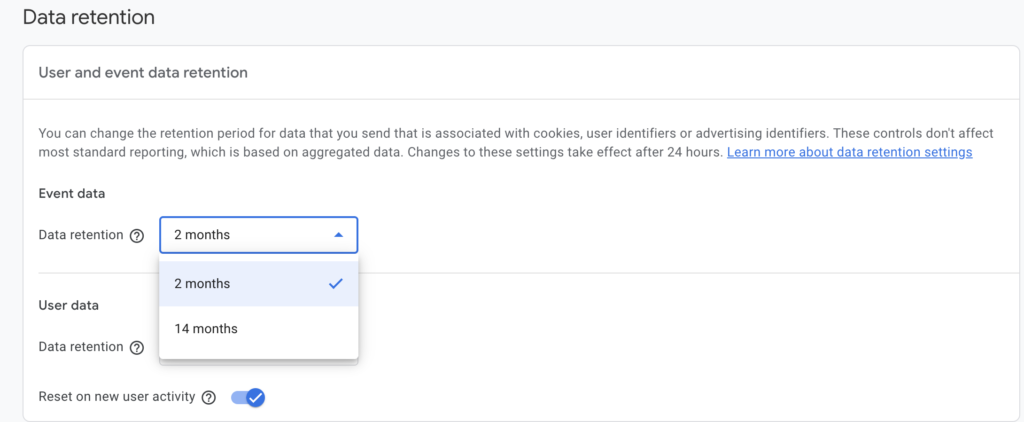
Suppose you want to examine last year's journeys in an Exploration. If the detail has already expired, increasing retention now can't recover the deleted data. An increase does cover older data that is still retained. Google waits 24 hours before applying a retention change.
Choose the period while the data is still available. Fourteen months may suit year-on-year analysis of retained detail, subject to your organisation's retention policy.
5. Check where your team's visits go
Your team reviews landing pages, tests forms and checks new content. On a low-traffic site, those visits can noticeably affect the reports.
Open Admin → Data collection and modification → Data filters. An internal-traffic filter in Testing still includes matching visits in the data. That gives you a chance to see what the rule would exclude.
Review both the internal-traffic definition in the web stream's tag settings and the filter that uses it. Confirm that the IP addresses identify the intended traffic. Working from home, changing IP addresses and VPN use can complicate the rule.
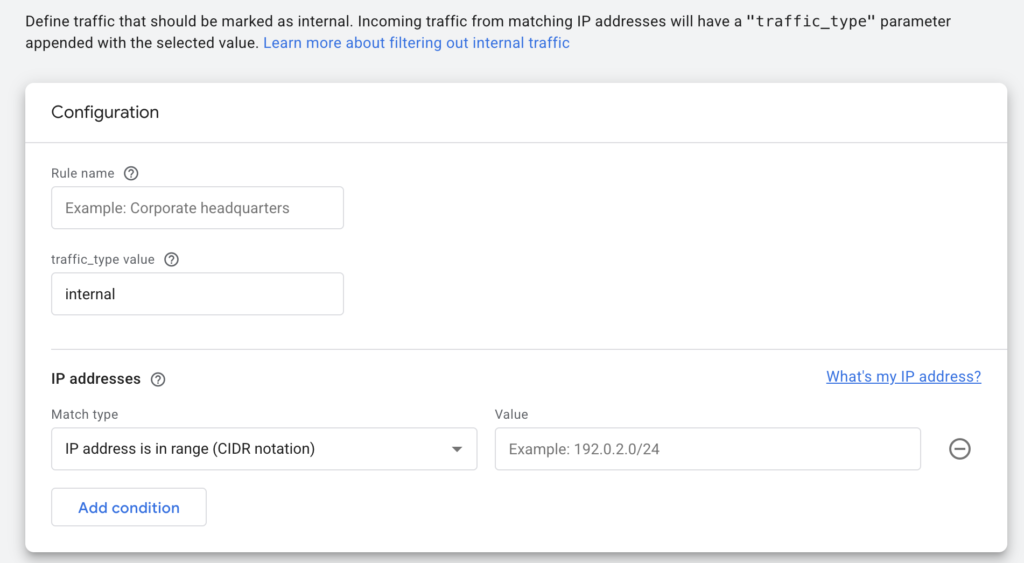
Validate the matches with the Test data filter name dimension before activating an exclusion. A filter can take 24–36 hours to apply, so allow for a later check.
Active exclusions permanently remove matching incoming data and leave old reports unchanged. A rule that's too broad can discard customer activity. If you only need to change what appears in a particular report, consider a report filter instead.
6. Understand the attribution window you're using
Open the key-event attribution settings from Admin → Data display → Events. Depending on the interface, the control may be labelled Attribution settings or Key events attribution.
Note the reporting model first. GA4 uses data-driven attribution by default, distributing credit with the available path data. A last-click model assigns credit differently. Compare the model with the journeys behind the numbers before changing it because a small sample looks uneven.
The reporting dimension also matters. A model change affects event-scoped dimensions such as Source. Session source and First user source keep their own attribution rules.
Next, review the lookback window, which sets how far back a touchpoint can be eligible for credit. The defaults are:
- 30 days for first_open and first_visit
- 90 days for other key events, including a typical lead submission
Other available settings depend on the event category.
Take someone who clicks a LinkedIn ad on day 1, returns through Google on day 45 and submits an enquiry. If you've chosen a 30-day window for the lead event, the LinkedIn touchpoint falls outside it. Under the normal 90-day setting, that touchpoint is within the window, provided GA4 observed it and can connect the journey. The model then determines how much credit it receives.
GA4 can record the enquiry in either case. The window controls eligibility for attribution; extending it can't recover an interaction that was never measured. Choose a setting that fits your buying cycle and document the reason for it.
Decide what needs a closer look
I wouldn't score the setup by counting passed checks. A missing purchase event can matter more than several smaller configuration issues combined. Prioritise the gap that could change a business decision.
Review Tag Diagnostics as well. It can flag missing tags and configuration problems. You'll still need to establish whether the event measures the right outcome.
For the next stage, follow an important journey with Tag Assistant or GTM Preview and GA4 DebugView. Select the test device and inspect the event names and parameters. DebugView requires debug mode, and consent or privacy controls can affect what appears. Use processed acquisition reports for attribution analysis; DebugView has limited attribution information.
A fuller review should cover:
- Consent choices. Test before and after each available choice against the intended setup. Basic and advanced consent mode can produce different network behaviour when consent is declined.
- Collection in different browsers. Privacy settings, blockers and failed scripts can prevent events from arriving.
- Returning visitors. Safari can shorten the life of browser identifiers, interrupting recognition across visits. The conditions depend on storage and user interaction, so a return after seven calendar days alone doesn't establish that GA4 will record a new user.
- Other domains. Follow transitions to checkout or booking services and inspect cross-domain measurement.
- Advertising destinations. Use each platform's own event diagnostics. Align actions, reporting dates and counting rules before treating a difference in totals as evidence of a lost event.
Our guides to high Direct traffic in GA4 and server-side tracking cover two of these areas in more detail.
If you'd like help with the public website, request a free external tracking check. We can inspect what it sends without account access. Private GA4 settings and reconciliation with business records require a separate review.
Start with the outcome you chose in the first check. Complete it once, confirm the event and its parameters, then find it in the processed report used to make decisions. If you advertise against that outcome, inspect the relevant advertising destination too. A missing event points you back to collection; duplicates send you to the trigger; a correct event in an unexpected report sends you to the reporting settings. Record the result and repeat the same journey after a form, checkout, consent or site change. You'll have a specific test you can return to whenever the numbers start looking wrong.